This article introduces how to download, install and use ComfyUI Desktop for Windows
ComfyUI Desktop is a standalone installation version that can be installed like regular software. It supports quick installation and automatic configuration of the Python environment and dependencies, and supports one-click import of existing ComfyUI settings, models, workflows, and files. You can quickly migrate from an existing ComfyUI Portable version to the Desktop version.ComfyUI Desktop is an open source project, please visit the full code hereComfyUI Desktop hardware requirements:
NVIDIA GPU
This tutorial will guide you through the software installation process and explain related configuration details.
As ComfyUI Desktop is still in Beta status, the actual installation process may change
Double-click the downloaded installation package file, which will first perform an automatic installation and create a ComfyUI Desktop shortcut on the desktopDouble-click the corresponding shortcut to enter ComfyUI initialization settings
There are many reasons you might have issues installing ComfyUI. Maybe a network connection failed when installing pytorch (15 GB). Or you don’t have git installed. The maintenance page automatically opens when it detects an issue and provides a way to resolve the issue.You can use it to resolve most issues:
Create a python virtual environment
Reinstall all missing core dependencies to your Python virtual environment that’s managed by Desktop
Install git, VC redis
Choose a new install location
The default maintenance page displays the current error contentClicking All allows you to view all the content that can be operated on currently
2
Select GPU
The three options are:
Nvidia GPU (Recommended): Direct support for pytorch and CUDA
Manual Configuration: You need to manually install and configure the python runtime environment. Don’t select this unless you know how to configure
Enable CPU Mode: For developers and special cases only. Don’t select this unless you’re sure you need it
Unless there are special circumstances, please select NVIDIA as shown and click Next to proceed
3
Install location
In this step, you will select the installation location for the following ComfyUI content:
Python Environment
Models Model Files
Custom Nodes Custom Nodes
Recommendations:
Please select a solid-state drive as the installation location, which will increase ComfyUI’s performance when accessing models.
Please create a separate empty folder as the ComfyUI installation directory
Please ensure that the corresponding disk has at least around 15G of disk space to ensure the installation of ComfyUI Desktop
Not all files are installed in this directory, some files will still be installed on the C drive, and if you need to uninstall in the future, you can refer to the uninstallation section of this guide to complete the full uninstallation of ComfyUI Desktop
After completing this step, click Next to proceed to the next step
4
Migrate from Existing Installation (Optional)
In this step you can migrate your existing ComfyUI installation content to ComfyUI Desktop. As shown, I selected my original D:\ComfyUI_windows_portable\ComfyUI installation directory. The installer will automatically recognize:
User Files
Models: Will not be copied, only linked with desktop version
Custom Nodes: Nodes will be reinstalled
Don’t worry, this step won’t copy model files. You can check or uncheck options as needed. Click Next to continue
5
Desktop Settings
These are preference settings:
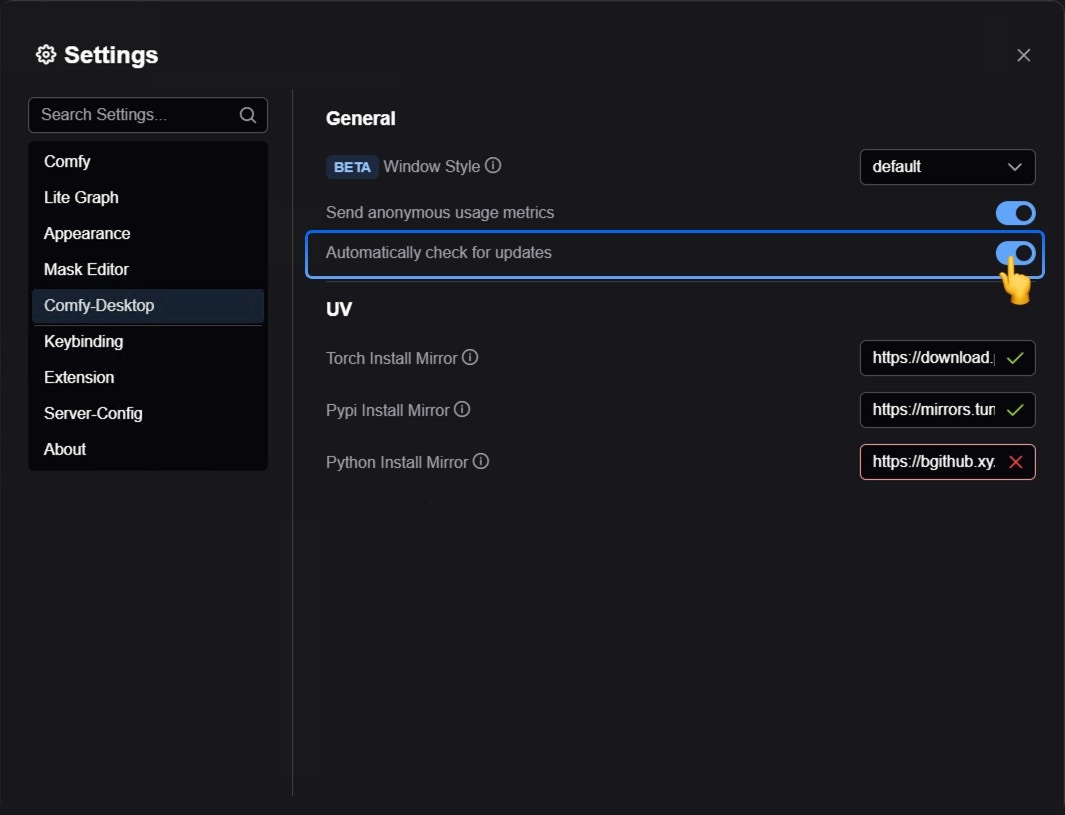
Automatic Updates: Whether to set automatic updates when ComfyUI updates are available
Usage Metrics: If enabled, we will collect anonymous usage data to help improve ComfyUI
Mirror Settings: Since the program needs internet access to download Python and complete environment installation, if you see a red ❌ during installation indicating this may cause installation failure, please follow the steps below
Expand the mirror settings to find the specific failing mirror. In this screenshot the error is Python Install Mirror failure.For different mirror errors, you can refer to the following content to try to manually find different mirrors and replace themThe following cases mainly apply to users in China.
If you need to find other alternative GitHub mirror addresses, please look for and construct a mirror address pointing to the releases of the python-build-standalone repository.
Important: Do not modify the resource/ComfyUI folder
Do not add or modify any content in the /resource/ComfyUI folder. All content in this folder will be reset when ComfyUI Desktop updates.Unlike other ComfyUI versions, the Desktop version manages this folder automatically. During installation, you chose a custom location for your models, custom nodes, and other user files - please use that location instead.
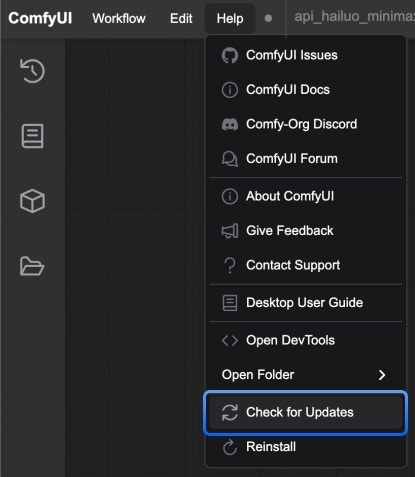
Currently, ComfyUI Desktop updates use automatic detection updates, please ensure that automatic updates are enabled in the settingsYou can also choose to manually check for available updates in the Menu —> Help —> Check for Updates
For the ComfyUI version such as portable and manual, you can find an example file named extra_model_paths.yaml.example in the root directory of ComfyUI:
Copy
Ask AI
ComfyUI/extra_model_paths.yaml.example
Copy and rename it to extra_model_paths.yaml for use. Keep it in ComfyUI’s root directory at ComfyUI/extra_model_paths.yaml.
You can also find the config example file here
If you are using the ComfyUI Desktop application, you can follow the image below to open the extra model config file:Or open it directly at:
For the desktop version, please add the configuration to the existing configuration path without overwriting the path configuration generated during installation. Please back up the corresponding file before modification, so that you can restore it when you make a mistake.
Or you can refer to the default extra_model_paths.yaml.example for more configuration options. After saving, you need to restart ComfyUI for the changes to take effect.Below is the original config example:
Copy
Ask AI
#Rename this to extra_model_paths.yaml and ComfyUI will load it#config for a1111 ui#all you have to do is change the base_path to where yours is installeda111: base_path: path/to/stable-diffusion-webui/ checkpoints: models/Stable-diffusion configs: models/Stable-diffusion vae: models/VAE loras: | models/Lora models/LyCORIS upscale_models: | models/ESRGAN models/RealESRGAN models/SwinIR embeddings: embeddings hypernetworks: models/hypernetworks controlnet: models/ControlNet#config for comfyui#your base path should be either an existing comfy install or a central folder where you store all of your models, loras, etc.#comfyui:# base_path: path/to/comfyui/# # You can use is_default to mark that these folders should be listed first, and used as the default dirs for eg downloads# #is_default: true# checkpoints: models/checkpoints/# clip: models/clip/# clip_vision: models/clip_vision/# configs: models/configs/# controlnet: models/controlnet/# diffusion_models: |# models/diffusion_models# models/unet# embeddings: models/embeddings/# loras: models/loras/# upscale_models: models/upscale_models/# vae: models/vae/#other_ui:# base_path: path/to/ui# checkpoints: models/checkpoints# gligen: models/gligen# custom_nodes: path/custom_nodes
For example, if your WebUI is located at D:\stable-diffusion-webui\, you can modify the corresponding configuration to
Besides adding external models, you can also add custom nodes paths that are not in the default path of ComfyUI
Please note that this will not change the default installation path of custom nodes, but will add an extra path search when starting ComfyUI. You still need to complete the installation of custom node dependencies in the corresponding environment to ensure the integrity of the running environment.
Below is a simple configuration example (MacOS), please modify it according to your actual situation and add it to the corresponding configuration file, save it and restart ComfyUI for the changes to take effect:
The desktop installation will create a Python virtual environment in your chosen installation directory, typically a hidden .venv folder.If you need to handle dependencies for ComfyUI plugins, you’ll need to do so within this environment. Using the system command line directly risks installing dependencies to the system environment, so please follow the instructions below to activate the appropriate environment.
You can use the built-in terminal in the desktop app to access the Python environment.
Click the icon in the menu bar to open the bottom panel
Click Terminal to open the terminal
If you want to check the Python installation location for the corresponding environment, you can use the following command
Windows
macOS
Copy
Ask AI
python -c "import sys; print(sys.executable)"
Copy
Ask AI
which python
Unless you understand the meaning of your current operations, your actions may cause dependency issues in the corresponding environment. Please use this method with caution.
You can also use your preferred terminal to access the Python environment, but you’ll need to activate the virtual environment first.
When using other terminals, if you’re not familiar with the operations, you may accidentally install dependencies to the system environment. Please use this method with caution.
In the screenshot, it shows a macOS terminal. If you are using Windows, please refer to the following steps to activate the virtual environment on your system.
1
Open Terminal
Open your preferred terminal and use the cd command to navigate to your ComfyUI installation directory, for example:
Copy
Ask AI
cd <your comfyui install directory>/ComfyUI
2
Activate Virtual Environment
Type the following command in the terminal to activate the virtual environment
Windows
macOS
Copy
Ask AI
.venv/Scripts/activate
Copy
Ask AI
source .venv/bin/activate
After activation, you should see a prompt like (ComfyUI) in the terminal, indicating that you’ve activated the virtual environment.
3
Confirm Current Python Environment
Use which python to check the current Python installation location and confirm it’s not the system environment.
4
After completing these steps, you’ve activated the corresponding Python environment, and you can continue to perform dependency installation operations in this environment.
For ComfyUI Desktop you can use the system uninstall function in Windows Settings to complete software uninstallationIf you want to completely remove all ComfyUI Desktop files, you can manually delete these folders:
If installation fails, you should see the following screenIt is recommended to take these steps to find the error cause:
Click Show Terminal to view error output
Click Open Logs to view installation logs
Visit official forum to search for error reports
Click Reinstall to try reinstalling
Before submitting feedback, it’s recommended to provide the error output and log files to tools like GPTAs shown above, ask the GPT for the cause of the corresponding error, or remove ComfyUI completely and retry the installation.